I looked at Xgrid a while back (here), and wrote up my findings (here). It's a lot of fun. I haven't done more because I can't really afford to set up a number of machines.
Charles Strauss has developed a wiki for Xgrid (here). It has tons of useful information including an extensive FAQ. Check it out.
Showing posts with label Xgrid. Show all posts
Showing posts with label Xgrid. Show all posts
Saturday, March 5, 2011
Thursday, November 12, 2009
Xgrid: writeup
I have written an account of what I learned about Xgrid, and how I used it for a "proof of principle" running BLAST on a single machine grid. You can get it from here.
[ UPDATE: I ran into an issue with the links. The document was composed in Text Edit (rtfd format) and then saved as PDF. Many but not all of the links showed up correctly and were active in Text Edit, and showed up but did not work in the PDF. By looking at the source, I found that the ones which worked correctly had
(my formatting)
A little testing showed that it's the \ul calls in the second section that make this a link in the pdf, the other stuff makes the text blue. So I added
[ UPDATE: I ran into an issue with the links. The document was composed in Text Edit (rtfd format) and then saved as PDF. Many but not all of the links showed up correctly and were active in Text Edit, and showed up but did not work in the PDF. By looking at the source, I found that the ones which worked correctly had
(my formatting)
A little testing showed that it's the \ul calls in the second section that make this a link in the pdf, the other stuff makes the text blue. So I added
\ul \ulc2 to all links by hand and it seems to work, with the exception of a multi-line link to the Apple docs for Xgrid, which is split into two separate links and is now broken. If you need it, that link is here.]


Wednesday, November 11, 2009
Xgrid: finale
It is just too weird for words. I spent at least 10 hours between yesterday and today, trying everything I could think of to figure out why Xgrid was knackered.
The jobs I try to run in Terminal hang, while those I try to submit give an id which then yields nothing when I request results. They are visible in Xgrid Admin as "pending" but nothing can persuade them to change that status.
• I found out that xgrid logs to /var/log/system.log
Depending on what I've been doing, I get a variety of errors there. At one point I had (in part):
Nov 11 17:04:50 localhost xgridagentd[20]: Notice: agent connected to controller "localhost" address "127.0.0.1" port "4111"
Nov 11 17:04:50 localhost xgridagentd[20]: Warning: agent error opening connection to controller "localhost" (error = Close requested)
Nov 11 17:04:57 localhost xgridcontrollerd[19]: Notice: controller role changed to MASTER
As I say, a huge variety of errors and no consistency. Sometimes complaints about passwords, sometimes about databases. Sometimes things closing on their own. The kitchen sink.
Itis not did not seem that the agent needs to be idle:
(But note that this value does not track with what is set in System Preferences). And anyway, I activated the screensaver and let it run for 15 minutes. No jobs ran.
And it is not a password issue. I got rid of all password requirements using both Xgrid Sharing and XgridLite, and confirmed it by looking with my own eyes at the plist files.
But miracle of miracles, I sit down to write a final post telling Apple that it's over between us, and leave Xgrid Admin open on my Desktop. I look over from blogger and see this:

It fixed itself! I'm speechless.
The jobs I try to run in Terminal hang, while those I try to submit give an id which then yields nothing when I request results. They are visible in Xgrid Admin as "pending" but nothing can persuade them to change that status.
• I found out that xgrid logs to /var/log/system.log
Depending on what I've been doing, I get a variety of errors there. At one point I had (in part):
Nov 11 17:04:50 localhost xgridagentd[20]: Notice: agent connected to controller "localhost" address "127.0.0.1" port "4111"
Nov 11 17:04:50 localhost xgridagentd[20]: Warning: agent error opening connection to controller "localhost" (error = Close requested)
Nov 11 17:04:57 localhost xgridcontrollerd[19]: Notice: controller role changed to MASTER
As I say, a huge variety of errors and no consistency. Sometimes complaints about passwords, sometimes about databases. Sometimes things closing on their own. The kitchen sink.
It
sudo cat /etc/xgrid/agent/com.apple.xgrid.agent.plist.default
 <key>OnlyWhenIdle</key>
 <false/>
(But note that this value does not track with what is set in System Preferences). And anyway, I activated the screensaver and let it run for 15 minutes. No jobs ran.
And it is not a password issue. I got rid of all password requirements using both Xgrid Sharing and XgridLite, and confirmed it by looking with my own eyes at the plist files.
But miracle of miracles, I sit down to write a final post telling Apple that it's over between us, and leave Xgrid Admin open on my Desktop. I look over from blogger and see this:

It fixed itself! I'm speechless.
Tuesday, November 10, 2009
Xgrid: conclusions
I've been posting about my experiments with Xgrid on a plain Mac OS X 10.6 installation with my one-year old MacBook. I was getting to the point of closing out these experiments, because although I did have BLAST working on Sunday, it was only accomplished by using a security-compromising hack. I've concluded there is no way to use this for anything serious without Server.
The bottom line seems to be that you cannot believe the hype (see this shiny web page), which is entitled Xgrid: High Performance Computing for the Rest of Us. It contains 68 matches for xgrid and 0 matches for Server. They certainly do not advertise this.
To summarize, what I wanted to do is:
• activate Xgrid on my machine (no Server)
• run BLAST via Xgrid on my machine plus other lab machines
There are still are unresolved issues with starting up
Adding insult to injury, today I started working to re-run the tests for the final posts (about BLAST), but none of the things that I did previously is working. I'm fully into Cargo Cult mode, messing with XgridLite and passwords, or trying to set them with the copy hack.
Jobs submitted using xgrid make it to the controller, they just don't run.
It's like Feynman describes in the last chapter of "Surely You're Joking, Mr. Feynman"
The xgrid jobs just hang. It is not an authentication problem, at least not with the controller, because without the correct password, they are rejected with:
The jobs are visible in Xgrid Admin, they're listed as pending. And they remain pending even with a stop and restart.
Perhaps it has to do with updating to 10.6.2 an hour ago...
Moving beyond, you may still be interested in playing with xgrid. You can run code installed in various places (even /Users/Shared). But to have that code open another file, you havethree two choices:
• give user "nobody" the same access as "somebody"
These aren't options:
• run in what's called the "sandbox" as user "nobody"
• use Kerberos and run as "somebody"
Particularly since agent-to-controller authentication is not working, the first option (the only solution), while it allows testing, is not recommended. Option 2 doesn't work if you need a database, and option 3 requires Server.
What I did, based on the link:
I was able to run BLAST using a database in /Users/Shared after doing this.
You win, Apple. How about sending me one of these?

Is this also just a toy?
The bottom line seems to be that you cannot believe the hype (see this shiny web page), which is entitled Xgrid: High Performance Computing for the Rest of Us. It contains 68 matches for xgrid and 0 matches for Server. They certainly do not advertise this.
To summarize, what I wanted to do is:
• activate Xgrid on my machine (no Server)
• run BLAST via Xgrid on my machine plus other lab machines
There are still are unresolved issues with starting up
xgridcontrollerd from the command-line, although the Snow Leopard Server Tools utility Xgrid Admin helps with that, but these are not deal-killers. However, there are very serious issues with authentication and permissions which mean that you cannot use Xgrid as anything but a toy without OS X Server. There doesn't seem to be any reason that this needs to be so, it is just Apple's choice. The reason for this restriction is the sandbox (e.g. see here).Adding insult to injury, today I started working to re-run the tests for the final posts (about BLAST), but none of the things that I did previously is working. I'm fully into Cargo Cult mode, messing with XgridLite and passwords, or trying to set them with the copy hack.
Jobs submitted using xgrid make it to the controller, they just don't run.
It's like Feynman describes in the last chapter of "Surely You're Joking, Mr. Feynman"
During the war they saw airplanes land with lots of good materials, and they want the same thing to happen now. So, they've arranged to make things like runways, to put fires along the sides of the runways, to make a wooden hut for the man to sit in, with two wooden pieces on his head like headphones and bars of bamboo sticking out like antennas---he's the controller---and they wait for the airplanes to land. They're doing everything right. The form is perfect. It looks exactly the way it looked before. But it doesn't work. No airplanes land. So I call these things cargo cult science ...
The xgrid jobs just hang. It is not an authentication problem, at least not with the controller, because without the correct password, they are rejected with:
BEEPError 535 (Authentication failure)The jobs are visible in Xgrid Admin, they're listed as pending. And they remain pending even with a stop and restart.
Perhaps it has to do with updating to 10.6.2 an hour ago...
Moving beyond, you may still be interested in playing with xgrid. You can run code installed in various places (even /Users/Shared). But to have that code open another file, you have
• give user "nobody" the same access as "somebody"
These aren't options:
• run in what's called the "sandbox" as user "nobody"
• use Kerberos and run as "somebody"
Particularly since agent-to-controller authentication is not working, the first option (the only solution), while it allows testing, is not recommended. Option 2 doesn't work if you need a database, and option 3 requires Server.
What I did, based on the link:
I was able to run BLAST using a database in /Users/Shared after doing this.
You win, Apple. How about sending me one of these?

Is this also just a toy?
Monday, November 9, 2009
Xgrid: getting data in and out
My goal is to run BLAST on a small grid of lab machines to process Pyrosequencing data. Actually, I'm trying to get ready, even though we don't have funding to do the project yet. So far, I have a grid with a single machine in all three roles: client, controller and agent.
There are lots of resources available, see the list here. I described in that post how I started up the xgridcontroller daemon, and obtained Xgrid Admin which gives me a view of xgrid jobs. The daemon is visible in Activity Monitor (choose "Other User Processes", or from Terminal with
or by using XGrid Admin. Note that the earlier examples used
now I can skip the
Before we get to the subject of this post, let's talk a little bit about where Xgrid runs and what you're allowed to do. According to the Apple docs, the jobs run on the agent as user "nobody." The docs discuss users and permissions here, but don't say much about user "nobody" beyond that it "provide(s) minimal permissions."
According to this FAQ from the mailing list:
And if you look at this file:
there are a couple of fairly complicated regular expressions
which I can't decipher completely but I interpret as restricting reading privileges for "nobody." And according to the mailing list entry, "the best solution to this problem is to enable Kerberos."
But we're getting ahead of ourselves. The question for today is, how do we get data and code to the agent and data back again? According to the Apple docs
In an example I used earlier, there is a one-line Python script with:
in a directory
As the docs say:
Executive summary:
• relative path: copied to the agent
• absolute path: assumed to exist on the agent
The version of the above example that I posted the other day and another here are subtly different. They provided a full path
According to the man page for xgrid, there are more options:
The docs say:
Thinking about this, I realized there is another issue with the xgrid command above. Even though it works, what it really should be is:
which also works. Since we're in temp on the agent, we don't need the directory before
I placed a file with some DNA sequence named
What about getting data back again? Well, I mean, other than the way we've been doing it :)
It works! We'll save stderror (se) for next time, with BLAST.
There are lots of resources available, see the list here. I described in that post how I started up the xgridcontroller daemon, and obtained Xgrid Admin which gives me a view of xgrid jobs. The daemon is visible in Activity Monitor (choose "Other User Processes", or from Terminal with
ps -A. It's curious that it comes back after a re-boot. The Xgrid controller can be administered from the command line:or by using XGrid Admin. Note that the earlier examples used
sudo for xgrid commands, but this is not necessary. In browsing the manual for xgrid, I discovered that you can do this (for my bash shell):now I can skip the
-h 127.0.0.1 -p <password> stuff in my commands. Before we get to the subject of this post, let's talk a little bit about where Xgrid runs and what you're allowed to do. According to the Apple docs, the jobs run on the agent as user "nobody." The docs discuss users and permissions here, but don't say much about user "nobody" beyond that it "provide(s) minimal permissions."
According to this FAQ from the mailing list:
The second ("nobody") provides only very minimal privileges, since it assumes that the agent doesn't trust the client. This is the most common reason why jobs that attempt to read or write outside of, e.g., /tmp, will get a permission error.
And if you look at this file:
/usr/share/sandbox/xgridagentd_task_nobody.sbthere are a couple of fairly complicated regular expressions
(allow file-read* (regex "^/(bin|dev|(private/)?(etc|tmp|var)|usr|System|Library)(/|$)"))
(allow file-read* file-write* (regex "^/(private/)?(tmp|var)(/|$)"))
which I can't decipher completely but I interpret as restricting reading privileges for "nobody." And according to the mailing list entry, "the best solution to this problem is to enable Kerberos."
But we're getting ahead of ourselves. The question for today is, how do we get data and code to the agent and data back again? According to the Apple docs
You have the option of supplying an input file or a directory of files. If you supply an input directory, it is copied to each agent and becomes the working directory for the executable file.
In an example I used earlier, there is a one-line Python script with:
print 'Hello Python world!'in a directory
temp on my Desktop. Working from the Desktop directory I did:As the docs say:
Important: You have the option of providing a relative path or an absolute path when specifying executable files, input files and directories, and output files and directories. When a relative path is used, the executable and the input files or directories are copied to the agents, and the output files or directories are created for every agent and collected by the controller. If you specify an absolute path to the executable, input, or output files or directories, those files are assumed to exist on the agent computers, or to be available to the agents as part of a shared file system, at the path location specified. They are not copied or created.
Executive summary:
• relative path: copied to the agent
• absolute path: assumed to exist on the agent
The version of the above example that I posted the other day and another here are subtly different. They provided a full path
/Users/te/Desktop/temp to the temp directory, and which should be "assumed to exist on the agent computers, or..." What we want is a relative path.According to the man page for xgrid, there are more options:
The docs say:
Use the -in parameter to pass an input directory. This directory is copied to each agent and becomes the working directory on the agent’s host computer. You can include anything needed in the working directory, such as additonal input files, libraries, and executables. The executable file is run in this directory.
Thinking about this, I realized there is another issue with the xgrid command above. Even though it works, what it really should be is:
which also works. Since we're in temp on the agent, we don't need the directory before
script.py.I placed a file with some DNA sequence named
seq.txt in the temp directory. The script xgrid.script.py opens the file and prints the data.What about getting data back again? Well, I mean, other than the way we've been doing it :)
It works! We'll save stderror (se) for next time, with BLAST.
Saturday, November 7, 2009
XgridLite and more on passwords

XgridLite is available here. It is a preference pane or plug-in for System Prefs.
We'll use it to change the passwords that the controller requires from the client and agent. The client-controller password is in:
/etc/xgrid/controller/client-passwordI changed it to 'abcd' using XgridLite.

Let's see what we have:
use the Finder getInfo to change permissions on the file.

run the pw.script.py from yesterday on it
That looks right. What's in the file is an XOR of the key and 'abcd'.
It works! So, I guess I just screwed it when I tried it yesterday. Now, go back to XgridLite and change the agent-controller password to 'wxyz'.
change permissions and examine it:
That looks right.
Different pid as expected, since we told XgridLite to restart the controller in order to make the password change effective:

And it hangs... Go back to XgridLite and change the agent password back to 'mypw'. It still hangs...
Grab a text copy of the manual (without repeats of some characters---what is that about?)
That looks like we are hooked up properly...
Try cp:
And now it works.
XgridLite is described as open-source. I'll have to grab a copy of the source and figure out what it's about. In any event, the most likely explanation seems to be that the controller should provide the agent-password to the agent, and it is either not doing that, or the agent is improperly using the password it requires, when it authenticates with the controller. Just a guess.
However, that doesn't explain why the reset using XgridLite failed. But perhaps I screwed up (<sigh> again).
Friday, November 6, 2009
Xgrid: simple Python scripts
I had a student in my Bioinformatics class who taught himself Java. (Silent cheer). But, of course, that meant he was hooked on classes. I'm not convinced. For standard scripting stuff, the code is so targeted to the problem, reusability is more of a dream than a goal. And complexity is not usually an issue. With that in mind, here are a few simple Python functions to explore a running Xgrid setup.
Looks like it works! Notice that we are running a Python script on the Agent (as described here).
Looks like it works! Notice that we are running a Python script on the Agent (as described here).
Xgrid: passwords
This post is the fifth in a series, the others are here (1, 2, 3, and 4).
As I said, copying a password from one file to another (and still another) seems like a pretty silly hack, and it is. So I joined the Apple mailing list for xgrid-users, and put up the question: how do you do this right? No response yet. And this is the internet's way of telling you "that was a really stupid question." At least that's my take. It's happened before. At least I tried searching the archives first. (Though this is pretty painful if you use the list's tool to do it).
So I went exploring on my single machine Xgrid:
which contains
The password file contains the password we entered in System Prefs, converted to its "hashed" form. The plist file looks like this:

It's interesting that "OnlyWhenIdle" does not match the setting I have in System Prefs. The other directory is
which contains
These are the two password files we created by the

Now, I think we could do this without authentication to the controller by either agent or client. We would simply edit this file to replace "Password" above by "None", as described here.
Also I wrote my new friend at Stanford, and he says that the "hashed" passwords in question are generated by XORing with a simple key (and he gave me the secret handshake). So that leads to: (i) the realization that it really was a stupid question and (ii) the real subject of this post. If Apple wanted to make Xgrid available to non-Server users, they would have decent authentication. They do not, so therefore... (you can figure it out). Now, in the Server manual they say that they use super-duper Server methods to handle the authentication securely. And since you can have a mixed Server/standard node environment you'd probably want to do it the same way for both. But I don't see any reason you'd have to do it that way.
So... let's take a closer look at the password. I set this to be something really sophisticated: 'mypw'. And then, I copied
Let's print them all together to see the pattern:
Conclusions:
#1: the passwords are not stored securely, it is clear that Apple does not want me to use this for anything serious
#2: I never appreciated that XOR has this symmetry:
if
then
How could I miss that?
As I said, copying a password from one file to another (and still another) seems like a pretty silly hack, and it is. So I joined the Apple mailing list for xgrid-users, and put up the question: how do you do this right? No response yet. And this is the internet's way of telling you "that was a really stupid question." At least that's my take. It's happened before. At least I tried searching the archives first. (Though this is pretty painful if you use the list's tool to do it).
So I went exploring on my single machine Xgrid:
/etc/xgrid/agentwhich contains
com.apple.xgrid.agent.plist.default
controller-password
The password file contains the password we entered in System Prefs, converted to its "hashed" form. The plist file looks like this:

It's interesting that "OnlyWhenIdle" does not match the setting I have in System Prefs. The other directory is
/etc/xgrid/controller which contains
agent-password
client-password
com.apple.xgrid.controller.plist.default
These are the two password files we created by the
cp command. The plist file looks like this:
Now, I think we could do this without authentication to the controller by either agent or client. We would simply edit this file to replace "Password" above by "None", as described here.
Also I wrote my new friend at Stanford, and he says that the "hashed" passwords in question are generated by XORing with a simple key (and he gave me the secret handshake). So that leads to: (i) the realization that it really was a stupid question and (ii) the real subject of this post. If Apple wanted to make Xgrid available to non-Server users, they would have decent authentication. They do not, so therefore... (you can figure it out). Now, in the Server manual they say that they use super-duper Server methods to handle the authentication securely. And since you can have a mixed Server/standard node environment you'd probably want to do it the same way for both. But I don't see any reason you'd have to do it that way.
So... let's take a closer look at the password. I set this to be something really sophisticated: 'mypw'. And then, I copied
/etc/xgrid/agent/controller-password to the Desktop (and changed the permissions). A disclaimer, I am not so hot with bytes. I'm sure this is a bit lame, but it works. Getting better at byte manipulation is on my to-do list, along with the same for Unicode. Here is the Python code:Let's print them all together to see the pattern:
Conclusions:
#1: the passwords are not stored securely, it is clear that Apple does not want me to use this for anything serious
#2: I never appreciated that XOR has this symmetry:
if
C = A XOR Bthen
A = B XOR C
B = A XOR C
How could I miss that?
Thursday, November 5, 2009
Xgrid: initial success

I've been exploring Xgrid a little more, and I think I've made significant progress. Following the previous posts (here and here), I fired up an Xgrid Controller from the command line, checked it out in Xgrid Admin, and then did a few examples:
We run /bin/echo with an argument:
Now, to do serious work, you'll want to copy over a directory that has goodies in it. For starters here is a text file in /temp on my Desktop:
And, without further ado, here is a Python script:
Change that last to be a submit request:
Actually, this output is too long to post! It starts like:
There are instructions in Drew McCormack's tutorial for using the result from this specification thingie to build a plist file that can be used for batch jobs that execute multiple commands. But that's hardly necessary if we can run a Python script.
Just remember to check your permissions! I've read that we execute our code in /tmp as user nobody. I'm not sure of that because I couldn't get /bin/ls to work in xgrid. So make sure any user can run the application you want to run (say BLAST, that's our next goal).
One more thing, let's see whether we can get an executable to move from the Client to the Agent and run. Compile this (and test it):
Now do:
minus the log stuff, the output is:
I'd call that a pretty good morning!
[UPDATE:
sudo is only needed for the xgridctl command, not for xgrid. My bad.
Xgrid: warnings and stalled queues
I'm still feeling my way into Xgrid. The lights are out and my hand is on the wall. The most important thing I've learned is that the Xgrid Amin utility (get it from here) is very helpful. It's useful because it is easy to screw up the Controller so that a job submission or other request fails, silently on the command line, but you can inspect the queue using Xgrid Admin and see whether the job is actually there, and inspect logs, even re-run jobs.

The installer puts it in /Applications/Server. I still don't understand why launching xgridcontrollerd gives such variable results, or how I'm screwing things up when I do. I get different combinations of:
Sometimes we hang, sometimes we don't!
Scrubbing the database helps, but only for a while:
After a long series of job submissions and run requests that failed, I open XGrid Admin and see this.

I put the lid of the laptop down to sleep, decide better, and open it up. They've all run! WTF?

One more thing. Even if I set the Xgrid Agent authentication to None in System Prefs, you still need to have these files:
Anybody who knows what the correct way to set these up is, please holler.

The installer puts it in /Applications/Server. I still don't understand why launching xgridcontrollerd gives such variable results, or how I'm screwing things up when I do. I get different combinations of:
Sometimes we hang, sometimes we don't!
Scrubbing the database helps, but only for a while:
After a long series of job submissions and run requests that failed, I open XGrid Admin and see this.

I put the lid of the laptop down to sleep, decide better, and open it up. They've all run! WTF?

One more thing. Even if I set the Xgrid Agent authentication to None in System Prefs, you still need to have these files:
/etc/xgrid/controller/client-password
/etc/xgrid/controller/agent-password
Anybody who knows what the correct way to set these up is, please holler.
Xgrid: firewall can be on
I'm continuing with Xgrid (previous post) and trying to learn more about the firewall. Executive summary: it does not need to be off.
I have it set to "Automatically allow signed software ..." as shown in the screenshot:

The short example from the previous post works in this configuration.
(Note that after the "submit", you will receive a job id and should use that in the last step).
There is much more to say about the firewall. First, Apple is moving to controlling access on a per-Application basis rather than using ports. This makes a lot of sense. It's called the Application Firewall (here is a short blurb about it, and here is the latest addition to my reading list: Code Signing).
And it's evident in the screenshot. Using the + and - buttons, one can manually add an Application (if it is locatable in the finder) to the list of allowed applications. I have checked "Automatically allow."
By steps that I don't remember, in one of my tests I got an alert panel asking about xgridcontrollerd, the Xgrid Controller daemon:

which I answered "Allow" leading to the daemon being listed in the table, but it is not listed there now, and yet Xgrid is working.

I wish I could remember how I did this!
According to the doc (above)
But it doesn't say how one would do this. It would be very useful to know how to emulate the + button from Terminal, since
Also:
I have it set to "Automatically allow signed software ..." as shown in the screenshot:

The short example from the previous post works in this configuration.
(Note that after the "submit", you will receive a job id and should use that in the last step).
There is much more to say about the firewall. First, Apple is moving to controlling access on a per-Application basis rather than using ports. This makes a lot of sense. It's called the Application Firewall (here is a short blurb about it, and here is the latest addition to my reading list: Code Signing).
And it's evident in the screenshot. Using the + and - buttons, one can manually add an Application (if it is locatable in the finder) to the list of allowed applications. I have checked "Automatically allow."
By steps that I don't remember, in one of my tests I got an alert panel asking about xgridcontrollerd, the Xgrid Controller daemon:

which I answered "Allow" leading to the daemon being listed in the table, but it is not listed there now, and yet Xgrid is working.

I wish I could remember how I did this!
According to the doc (above)
You can even add command line applications to this list.
But it doesn't say how one would do this. It would be very useful to know how to emulate the + button from Terminal, since
/usr and its subdirectories like /usr/libexec/xgrid/xgridcontrollerd are not visible from the Finder.Also:
Earlier ipfw technology is still accessible from the command line (in Terminal) and the Application Firewall does not overrule rules set with ipfw; if ipfw blocks an incoming packet, the Application Firewall will not process it.
Xgrid baby steps
I got interested in using Xgrid for "distributed multiprocessing." Although there is quite a bit of information out there, much of it was developed for OS X 10.4 Tiger and it's clear there have been changes (often steps backward in terms of ease of use) with Leopard and now, Snow Leopard. In particular, Apple would like me to purchase Server software, but I don't have $500 to spend when I'm just trying to explore a solution to a potential problem that I don't have yet.
Sources I've found include:
• an extensive set of tutorials by Charles Parnot at Macresearch
• a earlier tutorial by Drew McCormack
• Apple docs (guide and update)
• an article at Mac OS X hints (link)
From what I can tell, all the technology to do this is available with a standard OS X installation, it just doesn't have a pretty, time-saving GUI. First, some terminology. We have a:
• Client---originates the request for a job
• Controller---maintains a queue of jobs and distrbutes them to
• Agents---receive individual jobs and return results
In a high-class setup the Controller would run Server, in this exploration, my MacBook will play all three roles.
I would have liked to follow the Parnot tutorial exactly, but he provides software to set up the controller that isn't explained. Since they are not scripts, there wasn't a way for me to take them apart and see what they do. (And since they're Tiger, who knows if they'll still work?)
Let's try to do it ourselves. The first issue to deal with is the firewall. As described (here and here), Xgrid uses certain ports for communication (4111-4120 plus some other guesses only 4111 according to Apple). No guarantees, and in any event Snow Leopard itself doesn't allow fine-grained control over ports in System Prefs. No doubt, somewhere there is a command-line tool or other method to control this, but I don't know about it. So, for now, I just disconnected from the internet and then turned off the firewall.
Next, set up Xgrid Sharing in System Prefs: under Configure... use localhost as the controller, and set always accept tasks. In the main window, I set Computer Name: localhost. Set a password.
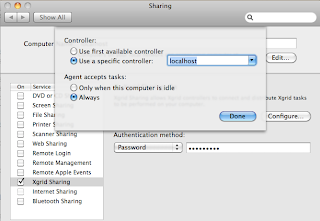
It's not really clear to me what we are setting here. In the small, inner window, it feels like we're doing Client settings, while in the big window, we're doing Agent settings. The password is what the Controller will use to authenticate with us when it sends us a job.
In the second comment to this installment of the tutorial, there is a suggestion to copy the stored hashes of passwords around. I did this on my first attempts, and have not yet tested whether it's necessary.
As you can see from the structure and filenames below, agent has a controller-password, which contains the password that we set in System Prefs. We're copying that file (even though it is not text but a hash) to the controller for use as both the client-password and the agent-password.
The commenter recommends that we do this in Terminal:
We'll use the same password to authenticate (as Client) to the Controller.
Now, it's just a few more commands in Terminal. Start up the daemon:
This gives me an output of 6 warnings and failures including
Hmm... Well, let's try anyway. Start the controller:
You can check its status:
And now we can either "submit" (asynchronous) or "run" a job (substitute the password you used in System Prefs).
With "run" you get back results (almost) immediately, and with "submit" you should get back something like this:
And finally:
My most pressing need is the firewall, I want to open only those ports that are necessary, and preferably only to Xgrid.
According to the macosxhints article, you can turn off authentication by modifying
Now it's time to work through the tutorials step by step.
I also downloaded the server admin tools as described but I haven't used them yet. And there is a "goodies" page on Parnot's site at Stanford, which looks promising. And finally, there is the Apple x-grid users Mailing List. For example, this advice might fix some of the warnings I got when starting up the daemon.
Baby steps.
Sources I've found include:
• an extensive set of tutorials by Charles Parnot at Macresearch
• a earlier tutorial by Drew McCormack
• Apple docs (guide and update)
• an article at Mac OS X hints (link)
From what I can tell, all the technology to do this is available with a standard OS X installation, it just doesn't have a pretty, time-saving GUI. First, some terminology. We have a:
• Client---originates the request for a job
• Controller---maintains a queue of jobs and distrbutes them to
• Agents---receive individual jobs and return results
In a high-class setup the Controller would run Server, in this exploration, my MacBook will play all three roles.
I would have liked to follow the Parnot tutorial exactly, but he provides software to set up the controller that isn't explained. Since they are not scripts, there wasn't a way for me to take them apart and see what they do. (And since they're Tiger, who knows if they'll still work?)
Let's try to do it ourselves. The first issue to deal with is the firewall. As described (here and here), Xgrid uses certain ports for communication (
Next, set up Xgrid Sharing in System Prefs: under Configure... use localhost as the controller, and set always accept tasks. In the main window, I set Computer Name: localhost. Set a password.

It's not really clear to me what we are setting here. In the small, inner window, it feels like we're doing Client settings, while in the big window, we're doing Agent settings. The password is what the Controller will use to authenticate with us when it sends us a job.
In the second comment to this installment of the tutorial, there is a suggestion to copy the stored hashes of passwords around. I did this on my first attempts, and have not yet tested whether it's necessary.
As you can see from the structure and filenames below, agent has a controller-password, which contains the password that we set in System Prefs. We're copying that file (even though it is not text but a hash) to the controller for use as both the client-password and the agent-password.
The commenter recommends that we do this in Terminal:
We'll use the same password to authenticate (as Client) to the Controller.
Now, it's just a few more commands in Terminal. Start up the daemon:
This gives me an output of 6 warnings and failures including
Hmm... Well, let's try anyway. Start the controller:
You can check its status:
And now we can either "submit" (asynchronous) or "run" a job (substitute the password you used in System Prefs).
With "run" you get back results (almost) immediately, and with "submit" you should get back something like this:
And finally:
My most pressing need is the firewall, I want to open only those ports that are necessary, and preferably only to Xgrid.
According to the macosxhints article, you can turn off authentication by modifying
/Library/Preferences/com.apple.xgrid.controller.plist
AgentAuthentication = None
ClientAuthentication = None
Now it's time to work through the tutorials step by step.
I also downloaded the server admin tools as described but I haven't used them yet. And there is a "goodies" page on Parnot's site at Stanford, which looks promising. And finally, there is the Apple x-grid users Mailing List. For example, this advice might fix some of the warnings I got when starting up the daemon.
Baby steps.
Subscribe to:
Posts (Atom)